Get Started with Your BTS Parent Portal Packs
Welcome to the introductory guide for the BTS Parent Portal Packs and its key features!
This guide will show you how the BTS Parent Portal can simplify and improve your pack management experience. The portal has been designed with simplicity in mind, making it easy to create, manage and order customised school packs for parents.
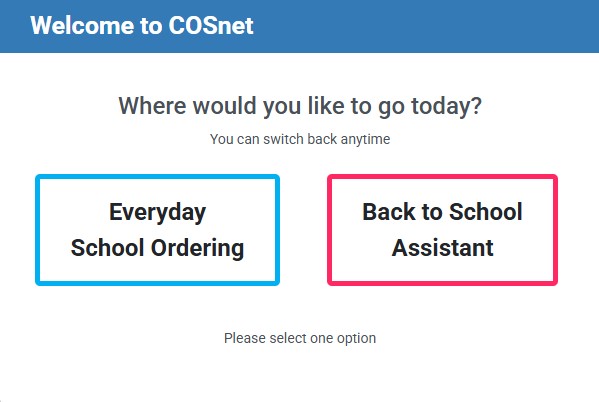
When you first log in to COSnet you’ll be asked ‘where would you like to go today’.
There are two options:
- Everyday School Ordering – for purchasing individual school items at standard prices with fast, on-demand delivery throughout the year.
- Back to School Ordering – for creating and managing customised School Packs, as well as placing bulk orders in advance for the upcoming school year.
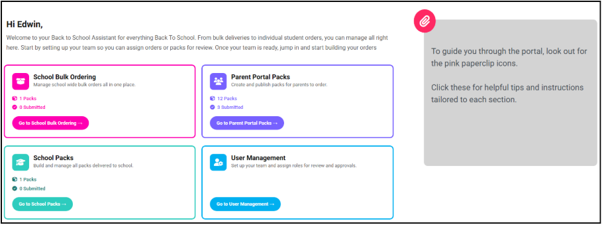
To create your School Packs, select Back to School Assistant. This will take you to the main Back to School dashboard, where you can choose the School Packs option to start creating and managing your packs.
Helpful Tips Along the Way: As you move through the portal, keep an eye out for the pink paperclip icon. It highlights useful tips, guidance, and important information to help make your BTS experience as smooth and easy as possible.
Parent Portal Packs
Parent Portal Packs is where you can create, manage, and prepare your school packs for parents.
How to Get Started
If your school is using the Parent Portal Pack Builder for the first time, you’ll be guided through setting up your first Parent Portal pack.
You can choose to:
- Upload your pack information using an upload, or
- Create your pack manually by selecting products via our pack builder yourself.
Upload Your Pack Information
Getting started is easy! Simply upload your order and we’ll help you build your pack in just a few steps.
Step 1: Upload Your Order
Upload your order in PDF, Word, or Excel format. For the best experience, please ensure your file contains one order only, as files with multiple orders may not process correctly.
Step 2: Review Your Product Options
We’ll automatically review your order and match the products where possible. For each item, you’ll be presented with suitable alternatives to choose from.
Step 3: Select What Works Best for You
Choose the products that best meet your needs, one item at a time. To make the process even easier, you can also use:
- Best Match – Selects the closest available options based on your order.
- Best Value – Selects options that offer the best overall value for your pack.
Step 4: Keep Track of Your Total
As you make your selections, we’ll show your pack total so you can easily compare options and stay within budget. You can also view the total when using the Best Match or Best Value selections.
Step 5: Create Your Pack
Once you’re happy with your selections, click Create Pack and you’re all set!
Good to know: You can edit your pack at any time after it’s been created, giving you the flexibility to make changes whenever needed.
Returning Schools
If your school has created packs before, we’ve made things even easier. Your previous year’s packs will already be available as Drafts, giving you a head start when preparing your new packs.
This means you can review, update, and publish your packs without having to start from scratch.

Parent Portal Pack Summary
The Parent Portal Pack Summary page gives you a quick and easy overview of all your school’s Parent Portal packs in one place.
From this page, you can:
- View all available packs
- Check each pack’s status
- See who the pack is assigned to
- Review pack totals
- Access quick action buttons to manage packs more efficiently
[Insert image of Summary page]
Making Quick Updates
Need to make a change? Simply double-click on a pack name or status within the summary page to edit it directly. This makes it easy to keep your pack information up to date without opening each pack individually.
School Note
The School Note section lets you share important information and messages with parents when they log in to the COS Parent Portal.
Use this area to communicate key details, reminders, instructions, or updates that parents need to see before placing their orders.
A clear and helpful school note can ensure parents have the information they need, reducing questions and making the ordering process smoother for everyone.
New Pack Status for Better Management
To make it easier to track the progress of your Parent Portal packs, we’ve introduced several pack statuses. These statuses help you quickly see where each pack is up to and what action may be required.
- Draft – A newly created pack that has not yet been worked on. (Automatically assigned)
- In Progress – A pack that is currently being prepared or updated. (Manually assigned)
- Assigned – The pack has been assigned to a user for review. An email notification will be sent automatically. (Automatically assigned)
- Back for Review – The pack has been reviewed and returned for approval, updates, or finalisation before it can be published.
- Finalised – In the finalised tab you will see packs with this status, these packs have been processed and are not modifiable.
Quick Actions
The Parent Portal includes a range of quick action tools to help you manage your packs efficiently.
- New Pack – Create a new Parent Portal pack and, if needed, easily add a drawstring bag as part of the setup process
- Assign Pack – Assign a pack to another user for review. The assigned user will receive an email notification.
- Clone – Copy an existing pack to create a similar pack for another year level or group, saving you time and effort.
- Delete – Permanently remove selected packs.
- Print / Email – Export individual or multiple packs as a PDF or Excel file for printing or sharing via email. Remember to download the file before printing.
- Edit Pack Information – Make updates directly within the summary grid.
- Test / Publish – Preview your packs in the COSNet Parent Portal test environment before making them live. (More information is provided later in this guide.)
- Finalise Selected Packs – Submit your completed packs to COS for processing.
Personalise Your View
You can customise the Parent Portal Summary page to display information in the way that works best for you.
Organise Your Columns
- Drag and drop column headers to rearrange them.
- Click any column header to sort information in ascending or descending order.
Advanced Column Options
Hover over the right side of a column header to access additional settings:
- Pin Columns – Keep important columns fixed in place while scrolling.
- Hide Columns – Remove columns from view.
- Auto-size Columns – Automatically adjust column widths to fit the content.
- Filter Columns – Display only the information you need.
Navigation Buttons
To help you move around the portal more easily, you’ll find several navigation buttons on the bottom of each page in the convenient sticky footer.
- To Current Pack – Returns you to the pack you are currently working on.
- To Summary – Takes you back to the Parent Portal Pack Summary page.
- Contact Your Representative – Opens an email to your COS representative if you need assistance.
- Can’t Find a Product? – Submit a product enquiry form. Your request will be emailed directly to your COS representative for follow-up.
Returning to the BTS Dashboard
At any time, you can return to the BTS Dashboard by clicking the COS logo at the top of the page. This provides a quick and easy way to navigate back to the main menu.
Uploading your School Logo
This section in the top right-hand corner allows you to upload your school logo to the BTS Assistant. Your logo will be featured in the Parent Letter, helping to create a more personalised experience for your school community. If you haven’t uploaded your logo at this stage, don’t worry—we’ll remind you to do so before you finalise your packs.
Note: PNG format is only available, image file must be less than 2MB.
How to Build Your Parent Portal Packs
To start adding products, click into a pack. You can then find items by using the search bar or browsing our categories.
To make your pack building experience seamless we have added a series of new features this year.
Pack Dropdown Menu
As you move through the Parent Portal, you’ll always be able to see which pack you are currently working on.
The pack name is displayed prominently on-screen at the top where the Search field is, making it easy to confirm you’re editing the correct pack. If you need to work on a different pack, you can quickly switch between packs without having to return to the summary page.
This helps you stay organised and makes managing multiple packs simple and efficient.
Add Product to Single or Multiple Packs
To add a product to a pack, simply click the light blue trolley icon.
When you select a product, a pop-up window will appear asking you to assign the item to a subject category. This helps keep your pack organised and makes it easier for parents to find the items they need.
If the appropriate subject category doesn’t already exist, you can create a new one directly from the pop-up window—there’s no need to leave the page or complete any extra steps.
This flexible process makes it quick and easy to build and organise your packs as you go.
To add a product, to multiple packs, select the dark blue trolley icon. A pop up will appear with a list of all your BTS packs.
- Understanding the Quantity Columns:
- Quantity 2025/2026: Enter the amount you wish to add to the pack/s.
- Current Quantity: Shows the quantity of a product you have already added to this pack.
- Quantity 2024/2025: If you’re building a pack based on last year’s preloaded packs, this column shows the quantity you packed last season.
- Subject: This allows you to select your subject to allocate your product
Adding Products Via Bulk Add to Cart
If you’re working from an existing list of product codes and quantities, you can save time by using the Bulk Add to Cart feature instead of searching for and adding products one at a time.
Simply enter the product codes and quantities into the Bulk Add screen, then select Add Products to Cart. The system will automatically add all matching items to your pack.
Upload Products Using a CSV File
You can also add products in bulk using a CSV file.
- Download the CSV template provided.
- Enter your product codes and quantities into the template.
- Save the file and upload it to the portal.
- Click Add Products to Cart to import the items into your pack.
This option is ideal if you already have your pack information prepared in a spreadsheet, making the setup process even faster and easier.
Adding Levy
You can now add Levies to your Parent Portal packs, making it easy to include additional school-related charges alongside your product lists.
To add a levy, click the Add Levy button. A pop-up window will appear where you can enter the levy details, including:
- Levy name or description
- Levy amount
- Whether the levy is Mandatory or Optional
This gives you the flexibility to include charges that all parents must pay, as well as optional contributions that parents can choose to add during the ordering process.
Once saved, the levy will be included in the Parent Portal pack and displayed to parents when they place their order.
Parent Portal Pack Details Page
Pack Details Grid Columns
The Pack Details Grid provides all the information you need to review and manage the products within your pack. Each column contains specific details to help you build and organise your pack more efficiently.
This grid gives you a complete view of your pack contents and allows you to make updates quickly and easily as you build your Parent Portal packs.
Column Name | Description |
Subject | The subject category the product belongs to within the pack (e.g., English, Mathematics, Science). |
Image | A picture of the product to help identify the item. |
Stock Code | The COS product code. |
Description | A detailed description of the product. |
Colour | The colour of the product, where applicable. |
Unit | The unit of measure used for the item (e.g., each, pack, or box). |
Previous Year Quantity | The quantity ordered in the previous school year, which can be used as a guide when preparing the current pack. |
Current Year Quantity | The quantity you would like included in this year’s pack. |
Unit Price | The price of a single unit of the product. |
Mandatory / Optional | Indicates whether the item is required or optional for parents to purchase. Recommended values: Mandatory or Optional (instead of Y/N for clarity). Not applicable for School Packs. Mandatory – Item is required for purchase. Optional – Item is not required and may be purchased at the parent’s discretion. |
Note to School | Add helpful information or instructions for the school. Notes can be added at either the subject level or individual product level. Not applicable for School Packs. |
Actions | Quick management options available for each item. Delete – Removes the product from the pack. Clone – Duplicates the product and adds it to another subject within the same pack, saving time when the same item is required across multiple subjects. |
Managing Subjects in the Grid
As you add products to your pack, you’ll notice that the Subject column may automatically display either General or a specific subject name.
Products are assigned to General when no subject has been specified. To update a product’s subject, simply double-click the cell in the Subject column and enter or select the appropriate subject.
Tip: For products that require a customer choice, such as left-handed or right-handed scissors, you can create a subject called “Please Select One” and add the relevant options under that subject. This helps ensure the correct product is selected when the pack is ordered.
Grid Rows
We’ve made it even easier to organise your packs this year by giving you more flexibility to move products between subjects.
To reposition an item, look for the waffle icon (the six-dot drag handle) on the far-left side of the grid. Simply click and hold the icon, then drag and drop the product into its new position or subject.
This feature allows you to quickly reorganise your pack contents without needing to delete and re-add products, making pack setup faster and more intuitive.
Adding Levy
You can now add Levies to your Parent Portal packs, making it easy to include additional school-related charges alongside your product lists.
To add a levy, click the Add Levy button. A pop-up window will appear where you can enter the levy details, including:
- Levy name or description
- Levy amount
- Whether the levy is Mandatory or Optional
This gives you the flexibility to include charges that all parents must pay, as well as optional contributions that parents can choose to add during the ordering process.
Once saved, the levy will be included in the Parent Portal pack and displayed to parents when they place their order.
Test & Publish Button
Before making your packs available to parents, you can review them in a dedicated test environment to see exactly how they will appear in COS Parent Portal.
Once all your packs are ready, click the Test / Publish button. A new browser tab will open, allowing you to view your packs in the COS Parent Portal test site.
This gives you the opportunity to:
- Check that products have been added correctly
- Review pack structure and subject categories
- Confirm levy information and pricing
- Experience the ordering journey from a parent’s perspective
- Identify and correct any errors before publishing
Using the test environment is a great way to ensure your packs are set up exactly as intended before they go live to parents.
Parent Portal Packs Submission Page
This page finalises your packs ready to Go live in your school’s Parent Portal.
Follow the steps below to complete the process:
Step 1- Review pack quote: review the PDF quote on the left before proceeding
Step 2- Contact Details: fill in your contact details
Step 3- Parent Letter format: Choose the format with how you want you receive your Parent letters. PDF or Word documents
Step 4- Quote Acceptance: Acknowledging the terms within your quote.
Finalised Packs Tab
The Finalised Packs tab provides a convenient way to keep track of all packs that have been published and are now live in the COS Parent Portal.
From this tab, you can:
- View all packs that have been finalised and published
- Print Parent Letters
Download Parent Letters
If you need additional copies of your Parent Letters, you can download them directly from this tab at any time.
These letters contain important information for parents about accessing the Parent Portal and placing their orders, making them easy to share as needed throughout the Back to School season.
User Management
Dedicated page for administrators with superuser access to set up and manage their teams access to COSnet.
The grid provides a quick snapshot of all users, their access level and expenditure limits.
The functionality is the same as the User Management you have in your Everyday School Packing account.