
Get Started with Your Parent Portal

Welcome to the Parent Portal guide! This is designed to help you, as a parent, easily manage your child’s school requirements through the COS Parent Portal.

We’ll walk you through each step, from logging in to finalising your orders for school packs, levies, and donations if applicable, ensuring a straightforward and efficient experience.

If you’re unsure where to start, we recommend watching the ‘How-to Use Parent Portal’ video tutorial, which provides a clear, step-by-step walkthrough of the portal’s key features. You can also refer to the detailed guide below for written instructions on how to log in, navigate the dashboard, and complete your orders. These resources are designed to support you every step of the way.

How it Works:

To get started, simply access the portal online and log in using the credentials provided by your school. From there, select your child’s appropriate school pack, review and adjust items as needed, and manage any levies or donations if applicable. Enter your child’s details, add the pack to your cart, and repeat the process for additional children if necessary. Finally, proceed to checkout to complete your order quickly and easily.

Follow the detailed guide below to navigate each stage of the process:

Step 1: Accessing The portal
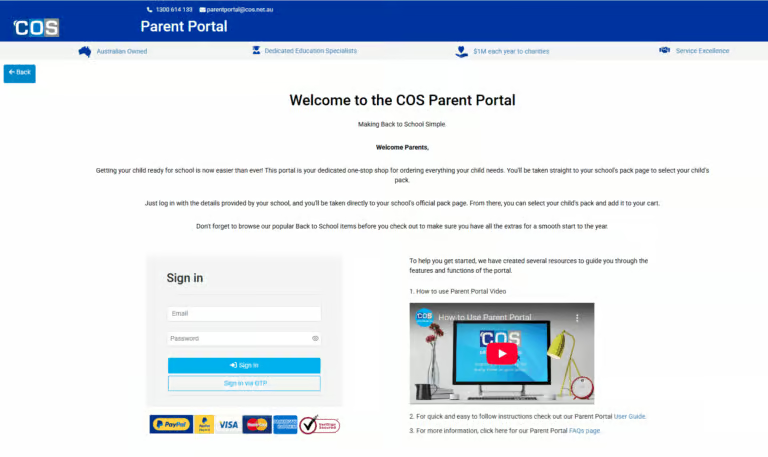
To begin, open your preferred web browser. Then, in the address bar, type parent.cos.net.au and press Enter to reach the COS Parent Portal homepage.

Use the email address and password provided by your school to sign in and access your parent account. Be sure to enter these credentials correctly to log in successfully.

After logging in, you’ll be directed to your school’s pack page. Please choose the pack that is appropriate for your child’s current year level.

Within the selected pack, you will see a list of items. Mandatory items are greyed out and cannot be removed.

For other items, you have the flexibility to adjust the quantity as needed to suit your child’s specific requirements.

If your school has included options for levies or donations (such as a building fund), you will find a section where you can adjust the amount you wish to contribute.

A field will be provided for you to input your student’s full name. Please ensure this is entered accurately to facilitate correct order processing.

After reviewing all your selections for the pack, click the ‘Add to Cart’ button. This action will place the selected pack and its contents into your shopping cart.

If you have more than one child for whom you need to order packs, simply click on the ‘Add & Order Another Pack’ option.

Once you have added all necessary packs and items to your cart, click the ‘Checkout’ button. This will take you to the payment section to finalise your order.

Search for Products

Search the COS range of products via the field below. You will be taken to the COS shop side of the site to view your results.