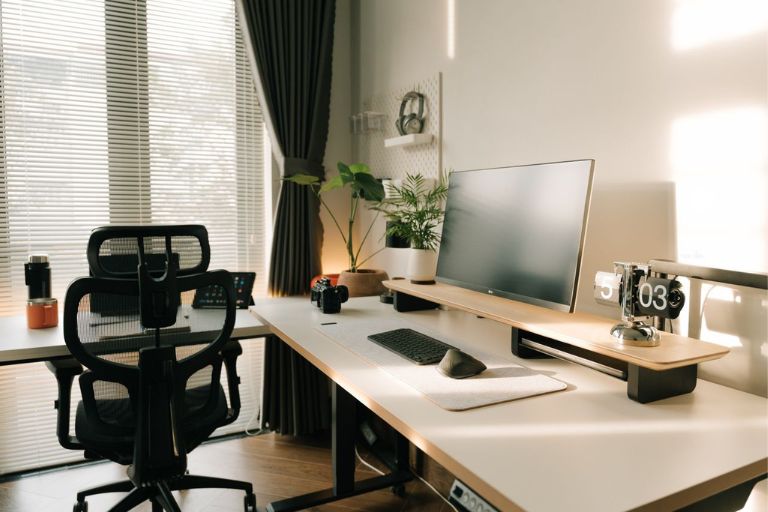


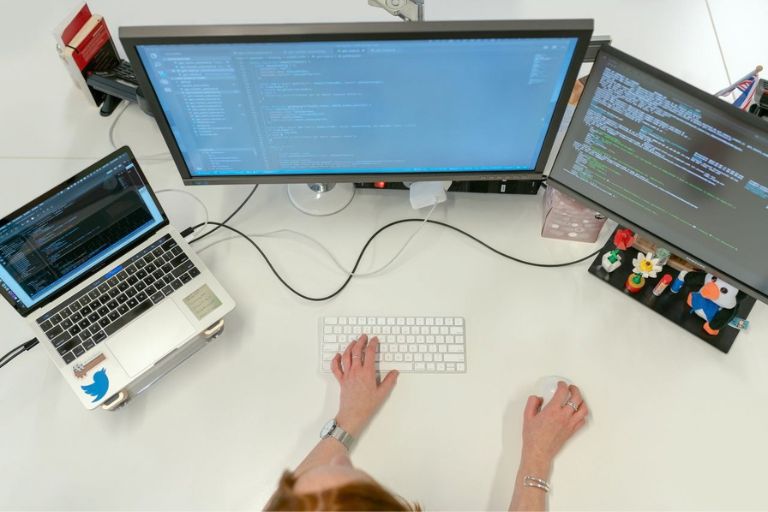
Choosing the right monitor for office work comes down to five criteria: screen size appropriate for the role and desk space, with 24 to 27 inches the practical range for most office workstations; resolution of at least Full HD (1920 x 1080) for standard office work or QHD (2560 x 1440) for detail-intensive roles; an IPS or similar panel for accurate colour and wide viewing angles; eye care features including flicker-free backlighting and a low-blue-light mode to reduce visual fatigue; and an adjustable stand or VESA mount compatibility so the monitor can be positioned at the correct ergonomic height.
A 2023 meta-analysis published in Scientific Reports, covering 103 studies and 66,577 participants, found that the pooled global prevalence of computer vision syndrome (CVS) among office workers is 69.2%. Symptoms include chronic eye strain, persistent headaches, blurred vision, dry eyes, light sensitivity, and neck and shoulder pain. Safe Work Australia’s Key WHS Statistics Australia 2025 identifies body stressing injuries, including those caused by sustained awkward posture and visual strain, as the leading cause of serious workers’ compensation claims at 32.7%.
Under the Work Health and Safety Act 2011, Persons Conducting a Business or Undertaking have a duty to manage risks from visual display unit use. Monitor selection is part of that obligation: a monitor that causes a worker to lean forward to read small text, tilt their neck to see a screen that is too low, or squint against glare is a workstation risk factor that the employer has a duty to address.
5 Criteria to Choose the Right Monitor for Work
1. Screen Size: 24 to 27 Inches for Most Office Roles
Screen size is the most visible specification and the one most people focus on first, but it is the interaction between screen size and viewing distance that determines whether a monitor is the right size for a specific workstation.
Safe Work Australia’s ergonomic workstation guidance recommends a viewing distance of approximately 50 to 70 centimetres from the eyes to the screen. At this distance:
- 24 inches is the minimum practical size for full-day office use and suits compact desks or secondary monitors in a dual-monitor setup
- 27 inches is the most widely used size for primary office monitors and provides a good balance of screen area, text readability, and desk footprint
- 32 inches and above is appropriate for roles that work with large spreadsheets, video or design work, or multiple application windows simultaneously, but requires a deeper desk to maintain the correct 50 to 70 centimetre viewing distance
For hot-desking environments or shared workstations, 27 inches is the most versatile choice: large enough for comfortable day-long use by workers of varying vision, small enough to work on standard office desks without compromising viewing distance.
2. Resolution: At Least Full HD for Standard Office Work
Resolution determines how sharp and readable text and images appear on the screen. For office work involving documents, spreadsheets, email, and web-based applications, resolution directly affects how comfortable the screen is to read for extended periods.
The practical resolution options for office monitors are:
- Full HD (1920 x 1080): adequate for most standard office roles on monitors up to 24 inches; at 27 inches, pixel density drops to a level where text can appear slightly soft; acceptable for budget-conscious procurement but not the ideal choice at larger sizes
- QHD or 2K (2560 x 1440): the recommended resolution for 27-inch monitors used in standard office roles; text is noticeably sharper, reducing the eye effort required to read documents for extended periods; the meaningful step up from Full HD for office productivity
- 4K or UHD (3840 x 2160): appropriate for design, video, photography, or data visualisation roles where image quality and detail resolution are critical; higher cost and requires a more capable graphics card; not necessary for standard office document and communication work
For organisations procuring monitors across a team, QHD at 27 inches is the specification that provides the best long-term value for standard office roles. It is more comfortable for all-day reading than Full HD at the same size and significantly less expensive than 4K for roles that do not require it.
Resolution and eye strain: Research consistently identifies low text sharpness as a contributing factor in computer vision syndrome. A monitor with adequate resolution for its size reduces the unconscious effort the visual system exerts to resolve text edges, which accumulates into measurably less eye fatigue by the end of a working day.
3. Panel Type: IPS for Office Work
The panel technology inside a monitor determines colour accuracy, contrast, viewing angles, and response time. For office work, panel type affects how comfortable the screen is to look at from different seating positions and whether colours and contrast are consistent across the full screen area.
The three main panel types are:
- IPS (In-Plane Switching): the standard recommendation for office work; accurate colour, consistent brightness across the screen, and wide viewing angles so the image does not shift in colour or brightness when viewed from slightly off-centre; the right choice for standard office, document, and communication roles
- VA (Vertical Alignment): higher contrast ratios than IPS, which produces deeper blacks and more vivid visual contrast; suitable for office roles that involve significant time in dimly lit environments or where image contrast is important; slightly narrower viewing angles than IPS
- TN (Twisted Nematic): the oldest and least expensive panel technology; fast response times historically made it popular for gaming, but narrow viewing angles and inferior colour accuracy make it a poor choice for office environments where workers view documents and images from variable positions
For most office environments, IPS is the correct choice. Its wide viewing angles are particularly relevant in open-plan offices where the monitor may be viewed from slightly off-axis by colleagues, or in meeting room screens viewed from different positions around a table.
4. Eye Care Features: Flicker-Free and Low-Blue-Light
Given that 69% of office workers experience computer vision syndrome according to the 2023 meta-analysis, eye care features on a monitor are not marketing additions. They are specifications that directly affect how workers feel at the end of a working day.
The two most important eye care features in an office monitor are:
- Flicker-free backlighting: standard LCD monitors use pulse-width modulation (PWM) to dim the backlight, which creates an imperceptible flicker that accumulates as eye fatigue over hours of use. Flicker-free monitors use DC dimming instead, which eliminates this flicker across the full brightness range. Look for monitors marketed as flicker-free or with DC dimming rather than PWM.
- Low-blue-light mode: a software or hardware setting that reduces the blue-light component of the display’s spectrum, which is associated with visual fatigue and disruption to circadian rhythm after extended exposure. A monitor with a dedicated low-blue-light mode allows workers to reduce blue light exposure without installing third-party software.
Additional eye care features worth noting include anti-glare screen coatings, which reduce reflections from overhead lighting and windows, and automatic brightness adjustment, which maintains consistent screen brightness relative to ambient light levels. Both reduce the visual effort required to maintain focus on the screen across changing light conditions through the working day.
5. Stand and Mounting: Height Adjustability Is Non-Negotiable
The monitor stand is the component that determines whether the screen can actually be positioned at the correct ergonomic height for each worker. Safe Work Australia’s guidance recommends the top of the monitor at or slightly below eye level, approximately 50 to 70 centimetres from the eyes. A monitor on a fixed-height stand that positions the screen too low for a particular worker creates sustained neck flexion throughout the working day.
For office procurement, look for monitors with height-adjustable stands that allow at least 100 millimetres of vertical travel, ideally more. A stand that also allows tilt adjustment (forward and backward) is useful for workers who adjust their seating position across the day. Pivot capability, which allows the monitor to rotate to portrait orientation, is useful for roles that work primarily with long documents.
For monitors with fixed-height stands, or where the stand does not provide sufficient height range for a particular worker, a monitor riser or monitor arm provides the necessary height adjustment. Monitor arms offer the greatest flexibility, allowing the monitor to be moved toward or away from the worker as well as adjusted for height, and are particularly useful in hot-desking environments where different workers use the same workstation.
COS monitor accessories: COS supplies monitor risers, monitor arms, and VESA-compatible mounting accessories to bring any monitor to the correct ergonomic height. If the monitor your organisation is procuring does not have an adjustable stand, a monitor arm from COS provides the necessary height and depth adjustment at a fraction of the cost of replacing the monitor.
Single Monitor vs Dual Monitor: Which Is Right for Your Team?
The decision between a single monitor and a dual-monitor setup depends primarily on the nature of the role. Dual monitors increase the visible screen area, reducing the need to switch between windows, which benefits roles that regularly work across multiple applications simultaneously.
Factor | Single monitor | Dual monitor |
Best for | Single-screen roles (document creation, email, video calls, data entry) | Multi-application roles (analysts, developers, project managers, EA roles managing multiple calendars and systems) |
Desk space | Suits standard 1,200 to 1,600 mm desks with room for other items | Requires at least 1,600 mm of desk width; primary and secondary monitors should be adjacent without forcing neck rotation |
Ergonomic risk | Low if positioned correctly at eye level and arm’s length | Higher if secondary monitor is far to the side; ideally positioned at a slight angle rather than at 90 degrees to the primary |
Cost | Lower initial hardware cost | Approximately double the monitor cost; often offset by productivity gain in qualifying roles |
Recommendation | Standard for most office roles | Strong recommendation for analysts, developers, and any role that regularly references one source while working in another |
Monitor Procurement Checklist for Office Environments
Use this checklist to help choose the right monitor for individual workstations or team-wide procurement.
Match size to desk depth and role
24 inches for compact desks or secondary monitors; 27 inches for most primary office workstations; 32 inches or above for design, data, or specialist roles with deeper desks.
QHD minimum for 27-inch monitors
Full HD (1920 x 1080) acceptable for 24-inch monitors at budget; QHD (2560 x 1440) recommended for 27-inch monitors in standard office roles; 4K for design, video, or detail-intensive specialist roles.
IPS for standard office environments
IPS for accurate colour and wide viewing angles in standard office and collaborative settings; VA where high contrast is a priority; avoid TN for office environments.
Flicker-free and low-blue-light mode
Confirm flicker-free backlighting (DC dimming, not PWM); confirm dedicated low-blue-light mode; anti-glare coating recommended for bright office environments.
Height-adjustable with sufficient travel
Minimum 100 mm vertical height adjustment; tilt adjustment; VESA mount compatibility confirmed if a monitor arm will be used. If stand is fixed-height, pair with a monitor riser or arm.
Confirm connection types for the workstation
Confirm HDMI, DisplayPort, and USB-C availability for the specific laptop or desktop being used at each workstation. Order any required adapters at the same time as the monitor.
Frequently Asked Questions
How do you choose the right monitor for office work?
Choose a monitor for office work based on five criteria: screen size of 24 to 27 inches for most roles; resolution of at least Full HD on 24-inch monitors or QHD on 27-inch monitors; an IPS panel for accurate colour and wide viewing angles; eye care features including flicker-free backlighting and a low-blue-light mode; and a height-adjustable stand or VESA mount compatibility.
What size monitor is best for office work?
27 inches is the most widely recommended size for a primary office monitor. It provides sufficient screen area for comfortable all-day productivity work at standard viewing distances of 50 to 70 centimetres, works well on standard office desks, and pairs with a QHD resolution to produce sharp, readable text without requiring a high-end graphics card. 24 inches is appropriate for compact desks or secondary monitors in a dual-monitor setup. 32 inches and above is appropriate for specialist roles with detail-intensive work and the desk depth to maintain correct viewing distance.
What is computer vision syndrome and how does a monitor affect it?
Computer vision syndrome (CVS) is a range of symptoms caused by prolonged digital screen use, including chronic eye strain, headaches, blurred vision, dry eyes, and neck and shoulder pain. A 2023 meta-analysis of 103 studies and 66,577 participants found a pooled prevalence of 69% among office workers. Monitor selection directly affects CVS risk: a monitor with low resolution forces the visual system to work harder to resolve text; PWM backlighting creates imperceptible flicker that accumulates as eye fatigue; a screen positioned too low causes sustained neck flexion; and insufficient screen size requires the worker to lean forward to read. Choosing a monitor with adequate resolution, flicker-free backlighting, and a low-blue-light mode addresses the most common monitor-related contributors to CVS.
Is a dual monitor setup worth it for office workers?
For roles that regularly work across multiple applications simultaneously, analysts, developers, executive assistants managing multiple calendars and systems, and project managers switching between planning tools and communication platforms, a dual monitor setup delivers a measurable productivity benefit. For roles that primarily work in one or two applications, a single 27-inch monitor at QHD resolution provides a large, sharp, comfortable working surface without the ergonomic risk of poorly positioned secondary monitors. The decision should be made per role rather than uniformly across a team.
What connectivity does an office monitor need?
At minimum, an office monitor should have HDMI and DisplayPort inputs to cover the most common laptop and desktop connections. USB-C with DisplayPort Alt Mode is increasingly important for modern laptops where USB-C is the primary output port. Before procuring monitors for a team, confirm the output ports available on the computers being used at each workstation and order any required adapters at the same time as the monitors. Adapters that are ordered separately after a monitor is installed create an avoidable delay in productive use.
Does COS supply monitors and monitor accessories for office workstations?
Yes. COS supplies monitors and a full range of monitor accessories for office workstations, including monitor risers, monitor arms, VESA mounts, HDMI, DisplayPort, and USB-C cables and adapters, and cable management accessories. COS is one of three suppliers on the Australian Government’s Whole of Government Stationery and Office Supplies Panel (Department of Finance, December 2024). Your COS account manager can help identify the right monitor and accessory combination for your team’s specific workstation configuration and role mix.
COS supplies monitors, monitor risers, monitor arms, cables, adapters, and workstation accessories for Australian businesses. One business account, contracted pricing, next-day delivery from warehouses in every state and territory.